Getting Started with MeshCore
Welcome to the CSRA MeshCore network. This guide will take you from zero to connected - no prior radio or networking experience needed.
Overview: What You'll Need
Getting on the MeshCore network requires three things:
- A LoRa node - a small radio device (handheld or fixed)
- The MeshCore app - free on Android and iOS
- The correct regional settings - so you can talk to other CSRA nodes
The whole process typically takes under an hour.
Step 1: Choose Your Hardware
Not sure what to buy? The Buying Guide matches your situation - just getting on the network, adding a repeater, or building your own - to a specific recommendation. For a full comparison of every supported device, antennas, and accessories, see the Hardware Guide.
If you just want a quick starting point, here are the most common picks. Each links to full specs, pricing, and buy links:
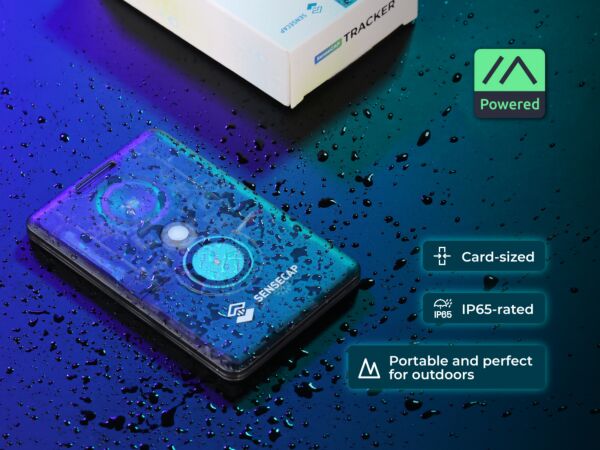
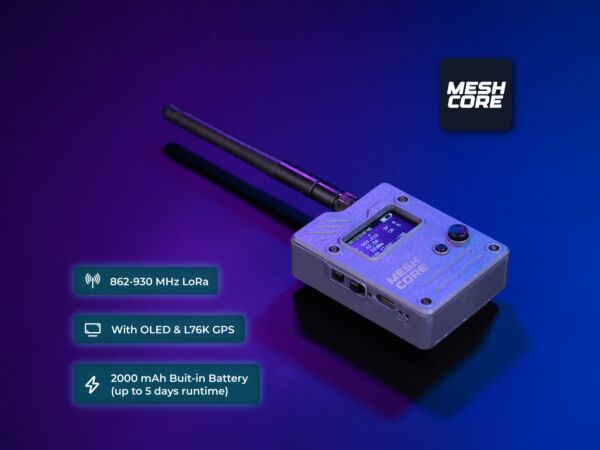
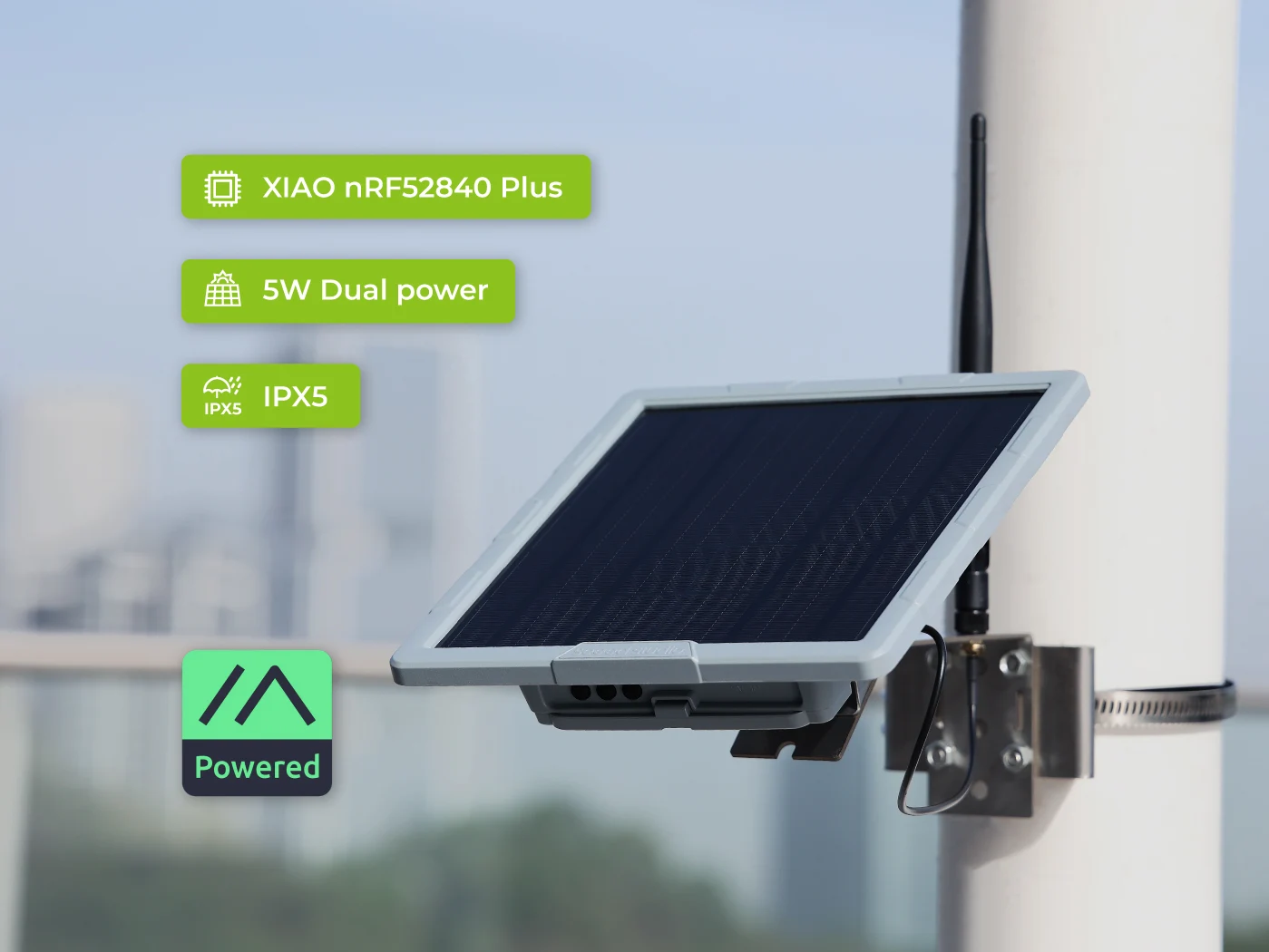
Start with the Buying Guide Full Hardware Guide
USA Band Requirement
You must buy a device with the 915 MHz LoRa band for legal US operation. Double-check product listings - many otherwise identical devices are sold in 868 MHz (EU) variants that cannot be used in the USA, and some budget devices are 433 MHz.
Step 2: Flash MeshCore Firmware
Most LoRa devices ship with other firmware (Meshtastic, LoRa32, etc.) and need to be flashed with MeshCore before use.
Using the MeshCore Web Flasher (Easiest)
- Connect your device to your computer via USB.
- Open the MeshCore web flasher at flasher.meshcore.io in Chrome or Edge (other browsers may not support WebSerial).
- Select your device model from the dropdown.
- Click Flash and wait for the process to complete (~2 minutes).
- The device will reboot automatically when done.
Use Chrome or Edge
The web flasher requires WebSerial API support, which Firefox and Safari do not currently support.
Need USB drivers, manual esptool flashing, over-the-air updates, or help getting a device into flash mode? See the Firmware Reference below.
Step 3: Install the MeshCore App
- Open the Google Play Store
- Search for MeshCore
- Install the official app by Liam Cottle
- Open the app - you'll be guided through initial setup
- Open the App Store
- Search for MeshCore
- Install the official app
- Open the app - you'll be guided through initial setup
Step 4: Pair Your Device
- Power on your LoRa node.
- Enable Bluetooth on your phone.
- Open the MeshCore app and tap Add Device.
- Select your device from the Bluetooth scan list.
- Pair when prompted - no PIN required on most devices, others default to 123456.
Step 5: Apply CSRA Regional Settings
In the app's Radio Settings, select the USA/Canada (Recommended) preset. That's it - the default Public channel requires no additional configuration.
You're on the network!
Once your settings match, your device will automatically begin discovering and communicating with nearby CSRA nodes.
Be patient!
To save power nodes advertise infrequently. It may take a day or two for things to show, but you can still communicate without "seeing" the node adverts as follows...
Step 6: Test and Say Hello
Join the #test channel and send a message - bots will auto-reply to confirm your device is on the network and relaying. Then hop over to the Public channel and introduce yourself! Include your general location (e.g., "Augusta south side" or "North Augusta") so others can get a sense of coverage in your area.
Firmware Reference
The web flasher in Step 2 covers most devices. These sections are for less common hardware, manual flashing, and over-the-air updates.
USB drivers (Windows / macOS)
Some devices use USB-to-serial chips that require drivers on Windows and macOS.
| Chip | Used By | Driver |
|---|---|---|
| CP2102 | Heltec V3, some T-Beams | Silicon Labs CP210x |
| CH340 | Many budget ESP32 boards | WCH CH340 Driver |
| FTDI | Some older boards | FTDI VCP Drivers |
Linux typically detects these automatically. macOS may require manual installation for CH340.
Putting a device into flash mode
If the web flasher can't communicate with your device, it may need to be put into flash/bootloader mode manually:
- Heltec V3 - hold PRG button, plug in USB, release after 2 seconds
- LILYGO T-Beam - hold IO0/BOOT button, plug in USB, release after 2 seconds
- T-Echo (nRF52840) - double-tap the RESET button quickly; the device mounts as a USB drive, then drag the
.uf2firmware file onto the drive
Updating firmware over-the-air (OTA)
For hard-to-reach devices it can be convenient to update firmware over-the-air (OTA) via Bluetooth without a USB cable. Most devices support this, but may need to be flashed with an OTA-capable bootloader before installing MeshCore itself.
This page links to the latest bootloader and install instructions.
Keep the app open during OTA updates
Closing the app or losing Bluetooth connection mid-update can corrupt firmware. Stay close to the device.
Manual flash with esptool (advanced)
For ESP32 devices, you can flash manually using esptool.py:
# Install esptool
pip install esptool

# Download firmware .bin from https://meshcore.io/downloads

# Flash (replace /dev/ttyUSB0 with your port, COM3 etc. on Windows)
esptool.py --chip esp32s3 --port /dev/ttyUSB0 \
  --baud 921600 write_flash -z 0x0 meshcore-heltec-v3-latest.bin
Check the MeshCore documentation for the correct flash address and chip type for your specific device.
Verifying the installation
After flashing:
- The device display (if equipped) should show the MeshCore logo or startup screen
- Open the MeshCore app, tap Add Device, and your device should appear in the Bluetooth scan
- After pairing, open Device Info and confirm the firmware version shows
MeshCore vX.X.X
If the device doesn't appear in Bluetooth scans, try powering it off and back on after flashing.
Troubleshooting
My device paired but I don't see any other nodes
- Confirm you selected the USA/Canada (Recommended) preset in Radio Settings
- Check that your antenna is fully connected - never transmit without an antenna
- Move to a higher location if possible - LoRa is line-of-sight sensitive
- Check the CSRA Network page to see if there are known nodes near you
The web flasher doesn't detect my device
- Try a different USB cable - many cables are charge-only with no data pins
- Try a different USB port on your computer
- Put the device into flash mode and install USB drivers if prompted - see the Firmware Reference above
My device gets hot or the battery drains fast
- Ensure transmit power is not set above the legal US limit (30 dBm / 1W)
- Enable sleep mode between transmissions in device settings
- Check that you have a proper antenna - a mismatch causes reflected power and heat
I still have questions, what do I do?
- Many hang out on CSRAMesh discord and are happy to help in the
#meshcoreroom. - Facebook is less active, but you can reach out there as well.
Next Steps
- Explore the Hardware Guide for accessory and antenna recommendations
- Visit Resources for links to the official docs, firmware releases, and community forums